Disclaimer: This content is not affiliated with, endorsed by, or produced in collaboration with the National Cyber Security Centre (NCSC).
Microsoft Edge is now the default enterprise browser in many Windows environments, which means browser hardening should be treated as a core security control rather than an optional configuration task.
The NCSC Edge configuration contains a small but important set of Microsoft Edge security policies. These settings focus on download control, Microsoft Defender SmartScreen, potentially unwanted app protection, Internet Explorer integration, and developer tools restrictions.
In many modern environments, these settings are deployed through Microsoft Intune. However, not every organization uses Intune. Some environments still rely on traditional Active Directory Group Policy, standalone Windows servers, isolated OT networks, offline systems, or domain-joined machines where cloud management is not available.
This guide explains how to configure the 2025 NCSC Microsoft Edge policies without Intune, using standard Group Policy Objects.
What This NCSC Edge Policy Configures
The NCSC Edge JSON contains six Microsoft Edge settings:
| JSON Policy | Group Policy Name | Recommended Setting |
|---|---|---|
| DownloadRestrictions | Allow download restrictions | Enabled: Block malicious downloads and dangerous file types |
| PromptForDownloadLocation | Ask where to save downloaded files | Enabled |
| InternetExplorerIntegrationLevel | Configure Internet Explorer integration | Enabled: None |
| DeveloperToolsAvailability | Control where developer tools can be used | Enabled: Don’t allow using the developer tools |
| SmartScreenEnabled | Configure Microsoft Defender SmartScreen | Enabled |
| SmartScreenPuaEnabled | Configure Microsoft Defender SmartScreen to block potentially unwanted apps | Enabled |
These are Microsoft Edge ADMX policies. They are not configured from Local Security Policy. They appear under Administrative Templates after the Microsoft Edge ADMX files are installed.
These Are Microsoft Edge ADMX Policies, Not Windows Security Policies
Before starting, it is important to understand where these settings live.
You will not find these settings under:
- Local Security Policy
- Windows Defender Firewall
- Windows Security app
- Security Options
- Microsoft Defender Antivirus policies
These settings are part of the Microsoft Edge Administrative Templates.
For domain environments, you configure them through Group Policy Management Console:
Computer Configuration → Policies → Administrative Templates → Microsoft Edge
For standalone machines, you configure them through:
Local Group Policy Editor → Computer Configuration → Administrative Templates → Microsoft Edge
If the Microsoft Edge node is missing, the Edge ADMX templates are not installed correctly.
Prerequisites
Before configuring the policies, make sure you have:
- Microsoft Edge installed on the target Windows machines
- Administrative access to the local computer or domain Group Policy
- Microsoft Edge ADMX and ADML policy template files
- Group Policy Management Console for domain deployment, or Local Group Policy Editor for standalone configuration
- A test machine to validate the configuration before production rollout
For Active Directory environments, the recommended approach is to import the Edge ADMX templates into the Group Policy Central Store.
For standalone machines, copy the templates directly into the local PolicyDefinitions folder.
Step 1: Download Microsoft Edge Administrative Templates
To configure Microsoft Edge using Group Policy, you need the Microsoft Edge policy templates.
Go to the Microsoft Edge for Business download site and select the desired Channel/Version, Build, and Platform.
Click GET POLICY FILES. This downloads MicrosoftEdgePolicyTemplates.cab.

After downloading the policy package, extract it. Inside the extracted folder, browse to:
windows\admxYou should see files such as:
msedge.admx
msedgeupdate.admx
You will also see language folders, for example:
en-USInside the language folder, you should see:
msedge.adml
msedgeupdate.adml
For the NCSC Edge browser policies in this article, the most important file is:
msedge.admxThe msedgeupdate.admx file is used for Microsoft Edge update policies, which are separate from the six browser hardening settings covered here.
Step 2: Install Edge ADMX Templates for a Domain GPO
If you are configuring Microsoft Edge policies in an Active Directory domain, copy the ADMX files to the Central Store.
\\yourdomain.local\SYSVOL\yourdomain.local\Policies\PolicyDefinitionsNote: If the domain Central Store does not exist, create the PolicyDefinitions folder manually under SYSVOL. Without a Central Store, Group Policy Management Editor reads ADMX files from the local admin workstation instead.
Copy:
msedge.admxto:
PolicyDefinitionsThen copy:
msedge.admlto the matching language folder, for example:
PolicyDefinitions\en-USAfter copying the files, open Group Policy Management Editor and confirm that the following node is available:
Computer Configuration → Policies → Administrative Templates → Microsoft Edge
Step 3: Install Edge ADMX Templates on a Standalone Windows Machine
For a standalone Windows machine without domain Group Policy, copy the templates locally.
Copy:
msedge.admxto:
C:\Windows\PolicyDefinitionsThen copy:
msedge.admlto:
C:\Windows\PolicyDefinitions\en-USUse the correct language folder for your operating system language.
Then open Local Group Policy Editor:
Win + R
gpedit.msc
Browse to:
Computer Configuration → Administrative Templates → Microsoft Edge
If Microsoft Edge appears under Administrative Templates, the ADMX import is working.
Step 4: Create or Edit the Microsoft Edge Hardening GPO
For a domain environment:
- Open Group Policy Management Console
- Right-click the target OU
- Select Create a GPO in this domain, and Link it here
- Name the policy something clear, such as: NCSC – Microsoft Edge Hardening
- Right-click the new GPO
- Select Edit
For a standalone machine:
- Open Local Group Policy Editor
- Browse to:
Computer Configuration → Administrative Templates → Microsoft Edge
1. Configure Download Restrictions
Policy Purpose
This setting controls what types of downloads Microsoft Edge blocks.
Group Policy Path
Computer Configuration → Policies → Administrative Templates → Microsoft Edge → Allow download restrictions

For standalone machines, the path is:
Computer Configuration → Administrative Templates → Microsoft Edge → Allow download restrictions
Recommended Configuration
Set the policy to:
EnabledUnder Options, select:
Block malicious downloads and dangerous file typesRegistry Mapping
This policy writes to:
HKLM\SOFTWARE\Policies\Microsoft\EdgeValue name:
DownloadRestrictionsValue type:
REG_DWORDRecommended value:
1Why This Matters
Download restrictions help reduce the risk of users downloading known dangerous files or files with dangerous extensions. This is particularly important in enterprise and OT environments where users may access vendor portals, support tools, firmware downloads, remote access utilities, or file-sharing platforms.
This setting does not block every download. Instead, it applies Microsoft Edge’s configured download security restrictions and blocks downloads that match the selected risk category.
Admin Note
Do not confuse this policy with a full download block. If you want to block all downloads, that is a different option under the same policy.
2. Ask Where to Save Downloaded Files
Policy Purpose
This setting controls whether Microsoft Edge asks the user where to save a file before downloading it.
Group Policy Path
Computer Configuration → Policies → Administrative Templates → Microsoft Edge → Ask where to save downloaded files

For standalone machines:
Computer Configuration → Administrative Templates → Microsoft Edge → Ask where to save downloaded files
Recommended Configuration
Set the policy to:
EnabledRegistry Mapping
This policy writes to:
HKLM\SOFTWARE\Policies\Microsoft\EdgeValue name:
PromptForDownloadLocationValue type:
REG_DWORDRecommended value:
1Why This Matters
Prompting users for the download location adds an extra interaction before a file is saved. It can help prevent silent or careless downloads into default locations such as the Downloads folder.
From an administration point of view, this setting also makes download behavior more visible to the user. It does not replace antivirus, SmartScreen, application control, or web filtering, but it supports a more deliberate download workflow.
3. Configure Internet Explorer Integration
Policy Purpose
This setting controls whether Microsoft Edge uses Internet Explorer integration.
Group Policy Path
Computer Configuration → Policies → Administrative Templates → Microsoft Edge → Configure Internet Explorer integration

For standalone machines:
Computer Configuration → Administrative Templates → Microsoft Edge → Configure Internet Explorer integration
Recommended Configuration
Set the policy to:
EnabledUnder Options, select:
NoneRegistry Mapping
This policy writes to:
HKLM\SOFTWARE\Policies\Microsoft\EdgeValue name:
InternetExplorerIntegrationLevelValue type:
REG_DWORDRecommended value:
0Why This Matters
Internet Explorer mode is sometimes required for legacy web applications. However, enabling IE mode unnecessarily can increase compatibility complexity and may allow older web application behavior to remain in use longer than needed.
The 2025-NCSC-Edge configuration sets Internet Explorer integration to None, which means IE integration is not enabled by this policy.
This is a sensible default for environments that do not have a documented business requirement for IE mode.
Admin Note
If your organization still requires IE mode for specific legacy applications, do not simply enable IE mode globally without planning. Use a controlled Enterprise Mode Site List and only allow IE mode for approved legacy sites.
For most modern environments, setting Internet Explorer integration to None is the safer baseline.
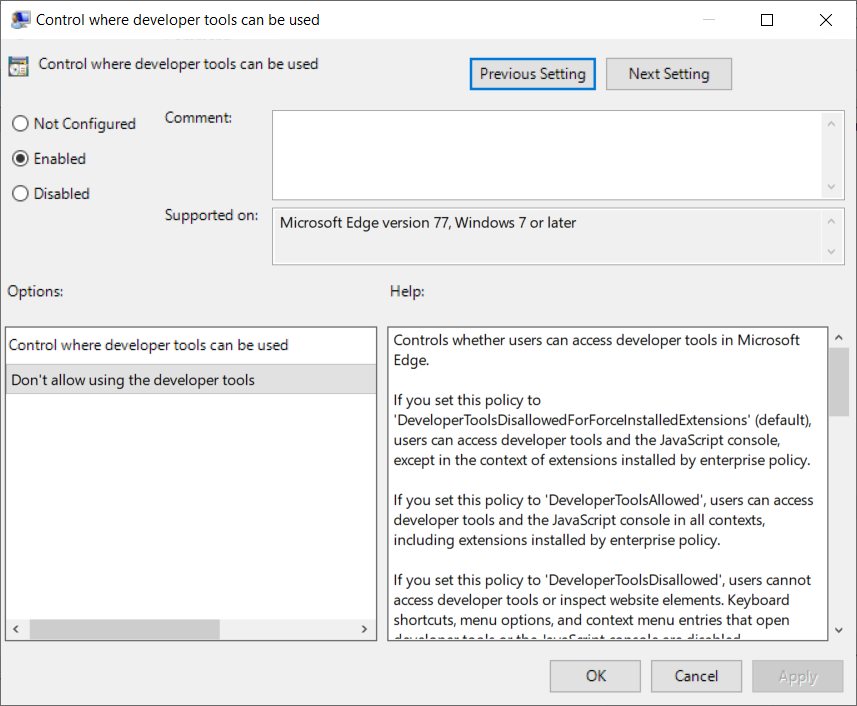
4. Disable Microsoft Edge Developer Tools
Policy Purpose
This setting controls whether users can access Microsoft Edge Developer Tools.
Group Policy Path
Computer Configuration → Policies → Administrative Templates → Microsoft Edge → Control where developer tools can be used
For standalone machines:
Computer Configuration → Administrative Templates → Microsoft Edge → Control where developer tools can be used
Recommended Configuration
Set the policy to:
EnabledUnder Options, select:
Don’t allow using the developer toolsRegistry Mapping
This policy writes to:
HKLM\SOFTWARE\Policies\Microsoft\EdgeValue name:
DeveloperToolsAvailabilityValue type:
REG_DWORDRecommended value:
2Why This Matters
Developer Tools are useful for web developers and support teams, but they are usually unnecessary for standard users. In managed environments, unrestricted access to Developer Tools may allow users to inspect application behavior, manipulate client-side web content, bypass weak front-end controls, or troubleshoot around restrictions that were intended to reduce risk.
Disabling Developer Tools is especially relevant on:
- Shared workstations
- Kiosk-style systems
- Operator stations
- Jump servers
- Production admin workstations
- OT and ICS environments
- General enterprise endpoints where users do not need browser debugging tools
Admin Note
This setting may affect developers, web application testers, and support staff. If those users need Developer Tools, apply this policy only to standard user devices or create a separate exception GPO for developer workstations.
5. Enable Microsoft Defender SmartScreen
Policy Purpose
This setting turns on Microsoft Defender SmartScreen in Microsoft Edge.
Group Policy Path
Computer Configuration → Policies → Administrative Templates → Microsoft Edge → SmartScreen settings → Configure Microsoft Defender SmartScreen

For standalone machines:
Computer Configuration → Administrative Templates → Microsoft Edge → SmartScreen settings → Configure Microsoft Defender SmartScreen
Recommended Configuration
Set the policy to:
EnabledRegistry Mapping
This policy writes to:
HKLM\SOFTWARE\Policies\Microsoft\EdgeValue name:
SmartScreenEnabledValue type:
REG_DWORDRecommended value:
1Why This Matters
Microsoft Defender SmartScreen helps protect users from malicious websites, phishing pages, and suspicious downloads. It is one of the most important Edge security controls because browser-based threats are common in enterprise environments.
When this policy is enabled, users cannot simply turn off SmartScreen from the browser settings.
This is important because a security baseline should not depend on every user making the safest choice manually.
Admin Note
SmartScreen requires the environment to allow the necessary Microsoft reputation and protection services. If your network uses SSL inspection, proxy filtering, or strict outbound allow-listing, test SmartScreen functionality carefully.
In highly restricted networks, SmartScreen may not behave as expected if Microsoft reputation services are blocked.
6. Enable SmartScreen PUA Protection
Policy Purpose
This setting enables Microsoft Defender SmartScreen protection against potentially unwanted apps.
Group Policy Path
Computer Configuration → Policies → Administrative Templates → Microsoft Edge → SmartScreen settings → Configure Microsoft Defender SmartScreen to block potentially unwanted apps
For standalone machines:
Computer Configuration → Administrative Templates → Microsoft Edge → SmartScreen settings → Configure Microsoft Defender SmartScreen to block potentially unwanted apps
Recommended Configuration
Set the policy to:
EnabledRegistry Mapping
This policy writes to:
HKLM\SOFTWARE\Policies\Microsoft\EdgeValue name:
SmartScreenPuaEnabledValue type:
REG_DWORDRecommended value:
1Why This Matters
Potentially unwanted apps are not always classified as traditional malware, but they can still create operational and security problems. Examples include adware, coin miners, bundled installers, browser modifiers, low-reputation tools, and unwanted software packages.
In enterprise environments, PUA protection is useful because users may unintentionally download tools that are not strictly malicious but still increase risk, create support issues, or violate internal software standards.
This setting is a strong companion to SmartScreen and download restrictions.
Admin Note
PUA protection in Microsoft Edge is separate from Microsoft Defender Antivirus PUA protection. For stronger coverage, configure both browser-level PUA protection and endpoint-level PUA protection where supported.
Optional: Configure the Same Settings Using Registry
Group Policy is the recommended method, especially in a domain environment. However, registry values are useful for validation, troubleshooting, or standalone systems where policy automation is required.
The mandatory Microsoft Edge policy registry path is:
HKLM\SOFTWARE\Policies\Microsoft\EdgeThe 2025-NCSC-Edge equivalent registry values are:
Windows Registry Editor Version 5.00

[HKEY_LOCAL_MACHINE\SOFTWARE\Policies\Microsoft\Edge]
"DownloadRestrictions"=dword:00000001
"PromptForDownloadLocation"=dword:00000001
"InternetExplorerIntegrationLevel"=dword:00000000
"DeveloperToolsAvailability"=dword:00000002
"SmartScreenEnabled"=dword:00000001
"SmartScreenPuaEnabled"=dword:00000001
PowerShell Option
You can also create the same values using PowerShell:
$EdgePolicyPath = "HKLM:\SOFTWARE\Policies\Microsoft\Edge"

if (!(Test-Path $EdgePolicyPath)) {
    New-Item -Path $EdgePolicyPath -Force | Out-Null
}

New-ItemProperty -Path $EdgePolicyPath -Name "DownloadRestrictions" -Value 1 -PropertyType DWord -Force
New-ItemProperty -Path $EdgePolicyPath -Name "PromptForDownloadLocation" -Value 1 -PropertyType DWord -Force
New-ItemProperty -Path $EdgePolicyPath -Name "InternetExplorerIntegrationLevel" -Value 0 -PropertyType DWord -Force
New-ItemProperty -Path $EdgePolicyPath -Name "DeveloperToolsAvailability" -Value 2 -PropertyType DWord -Force
New-ItemProperty -Path $EdgePolicyPath -Name "SmartScreenEnabled" -Value 1 -PropertyType DWord -Force
New-ItemProperty -Path $EdgePolicyPath -Name "SmartScreenPuaEnabled" -Value 1 -PropertyType DWord -Force
Restart Microsoft Edge after applying the settings.
Important Registry Warning
Direct registry configuration can be useful, but Group Policy is easier to audit, manage, and roll back. In production environments, use GPO wherever possible.
Step 5: Apply Group Policy
After configuring the settings, apply the GPO to the required OU or local machine.
On a domain-joined client, run:
gpupdate /forceThen close and reopen Microsoft Edge.
Some policies apply dynamically, while others may require a browser restart. For best results, fully close Edge and reopen it.
If Edge continues running in the background, close it from Task Manager or disable background running before testing.
Step 6: Verify the Policies in Microsoft Edge
The easiest way to verify Microsoft Edge policies is from inside the browser.
Open Microsoft Edge and browse to:
edge://policyClick:
Reload policiesConfirm the following policies appear:
DownloadRestrictions
PromptForDownloadLocation
InternetExplorerIntegrationLevel
DeveloperToolsAvailability
SmartScreenEnabled
SmartScreenPuaEnabled
Expected values:
| Policy | Expected Value |
|---|---|
| DownloadRestrictions | 1 |
| PromptForDownloadLocation | true / 1 |
| InternetExplorerIntegrationLevel | 0 |
| DeveloperToolsAvailability | 2 |
| SmartScreenEnabled | true / 1 |
| SmartScreenPuaEnabled | true / 1 |
If a policy does not appear, check the GPO link, security filtering, ADMX installation, and whether the setting was configured under the correct Computer Configuration path.
Step 7: Troubleshooting Common Issues
Microsoft Edge Policies Are Missing from Group Policy Editor
If you do not see the Microsoft Edge folder under Administrative Templates, the ADMX files are missing or copied to the wrong location.
Check that:
msedge.admxexists in:
C:\Windows\PolicyDefinitionsor in the domain Central Store:
\\domain\SYSVOL\domain\Policies\PolicyDefinitionsAlso confirm that:
msedge.admlexists in the correct language folder, such as:
en-USPolicies Are Configured but Not Applying
Run:
gpupdate /forceThen check the Resultant Set of Policy:
gpresult /h C:\Temp\gpresult.htmlOpen the report and confirm the Edge hardening GPO is applied.
Also check:
edge://policyIf the GPO applies but Edge does not show the setting, confirm that the policy was configured under Computer Configuration, not the wrong user-side node.
Edge Shows Old Policy Values
Close and reopen Microsoft Edge.
If needed, end all Edge processes from Task Manager:
msedge.exeThen open Edge again and check:
edge://policyDeveloper Tools Still Open
Confirm that the policy value is:
DeveloperToolsAvailability = 2Also confirm the setting is not being overridden by another GPO with higher precedence.
In domain environments, check GPO order, inheritance, enforced links, and security filtering.
IE Mode Is Still Available
If IE mode is still available, check whether another GPO configures:
InternetExplorerIntegrationLevel
InternetExplorerIntegrationSiteList
InternetExplorerIntegrationReloadInIEModeAllowed
The NCSC JSON setting covered in this guide sets Internet Explorer integration to None, but another policy may be enabling IE mode elsewhere.
Conclusion
The 2025-NCSC-Edge configuration can be implemented without Intune by using Microsoft Edge Group Policy settings. The key is to install the Microsoft Edge ADMX templates and configure the required policies under Administrative Templates.
For this baseline, the most important controls are Microsoft Defender SmartScreen, SmartScreen PUA protection, download restrictions, download prompts, disabling Developer Tools, and preventing unnecessary Internet Explorer integration.
For domain environments, deploy the settings through a dedicated GPO. For standalone machines, use Local Group Policy Editor or controlled registry deployment.
After deployment, always validate the final configuration using:
edge://policyThis confirms what Microsoft Edge is actually receiving, which is more reliable than checking the GPO editor alone.