Disclaimer: This content is not affiliated with, endorsed by, or produced in collaboration with the National Cyber Security Centre (NCSC).
Controlling which devices users can connect to Windows endpoints is one of the most effective ways to reduce the risk of malware infections, unauthorized peripherals, data exfiltration, and hardware-based attacks.
The UK National Cyber Security Centre (NCSC) includes a Device Control baseline within its Windows security recommendations to help organizations restrict unauthorized hardware while allowing approved business devices.
Although the published NCSC baseline is designed for Microsoft Intune, most of its recommendations can also be implemented using traditional Group Policy Objects (GPO). This guide explains how to configure every supported policy using Group Policy while identifying the few settings that currently require Mobile Device Management (MDM).
Why Device Control Matters
Without device control policies, users can connect virtually any USB device to a Windows computer, including:
- USB storage devices
- Smartphones
- Portable media players
- Wireless adapters
- Unauthorized Bluetooth devices
- Rogue PCIe peripherals
These devices can introduce malware, bypass security controls, or be used to steal sensitive information.
The NCSC baseline significantly reduces this risk by limiting device installation, disabling unnecessary wireless capabilities, and improving removable media security.
Prerequisites
Before configuring these policies, ensure:
- Windows Pro, Enterprise, or Education edition
- Latest Windows Administrative Templates (ADMX)
- Local Administrator or Domain Administrator permissions
- Group Policy Management Console (GPMC) for domain environments
Device Installation Restrictions
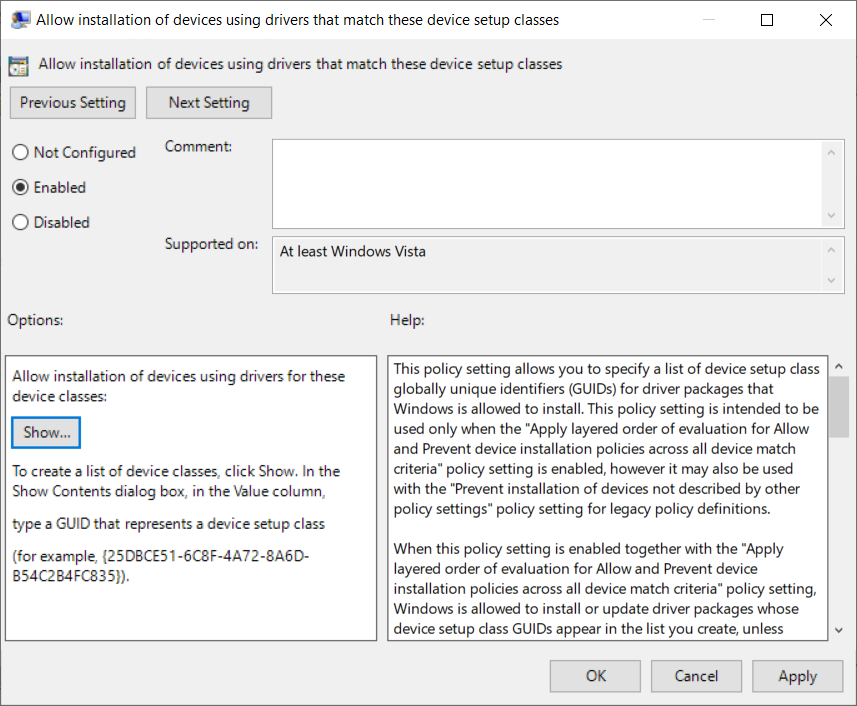
Allow Installation of Approved Device Instance IDs
This policy allows Windows to install only approved hardware devices when installation restrictions are in place.
Group Policy Path
Computer Configuration → Policies → Administrative Templates → System → Device Installation → Device Installation Restrictions → Allow installation of devices that match any of these device instance IDs
Configuration
- Open the policy.
- Select Enabled.
- Click Show.
- Add the approved device instance IDs used within your organization.
- Click OK.
Important
The NCSC Intune baseline contains example hardware IDs that are specific to Microsoft’s testing environment. Do not copy these values directly. Instead, obtain the Device Instance IDs for your organization’s approved hardware using Device Manager.
How to Find Device Instance IDs
- Open Device Manager.
- Right-click the device.
- Select Properties.
- Open the Details tab.
- Choose Device Instance Path or Device Instance ID.
Record the values and add them to the allow list.
Prevent Installation of Device Setup Classes
Instead of blocking individual hardware IDs, this policy blocks entire classes of devices.
Group Policy Path
Computer Configuration → Policies → Administrative Templates → System → Device Installation Device → Installation Restrictions → Prevent installation of devices using drivers that match these device setup classes

Configuration
- Set the policy to Enabled.
- Click Show.
- Add the setup class GUIDs specified by your security policy.
- Enable:
Also apply to matching devices that are already installedThe NCSC baseline enables retroactive enforcement so that existing devices matching these setup classes are also blocked.
Prevent Installation of Matching Device IDs
This policy blocks installation of specific hardware IDs.
Group Policy Path
Computer Configuration → Policies → Administrative Templates → System → Device Installation Device → Installation Restrictions → Prevent installation of devices that match any of these device IDs

Configuration
Enable the policy.
Add the following device ID from the NCSC baseline:
PCI\CC_0C0AEnable:
Also apply to matching devices that are already installedRemovable Storage Protection
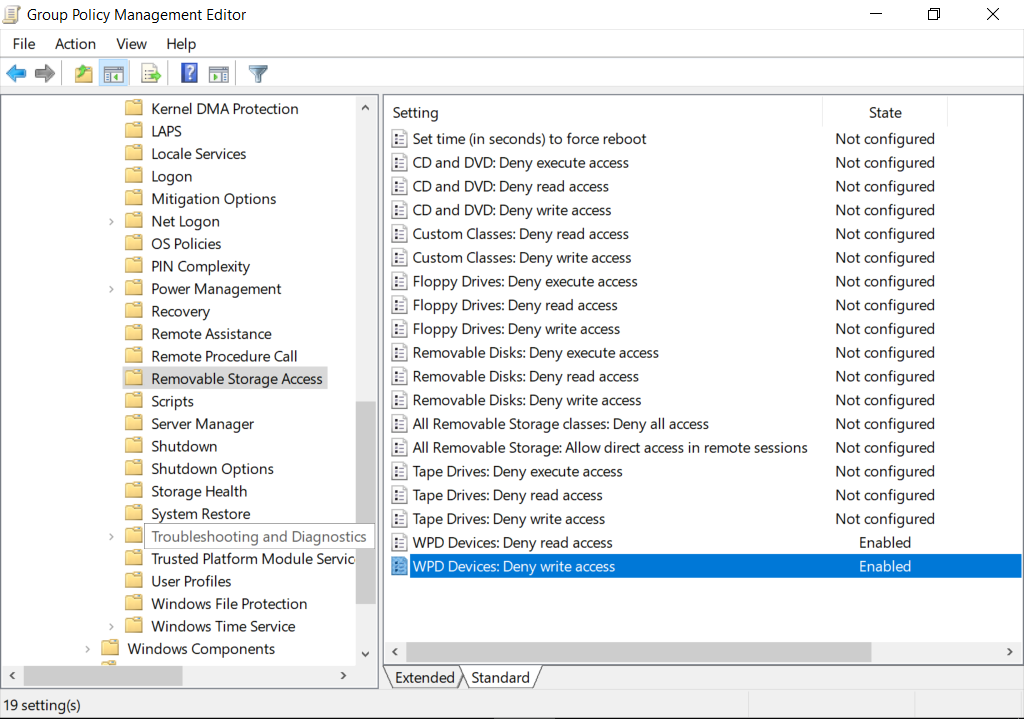
Windows Portable Devices (WPD) include devices such as smartphones, tablets, cameras, and media players.
WPD Devices: Deny Read Access
Group Policy Path
Computer Configuration → Policies → Administrative Templates → System → Remove Storage Access → WPD Devices: Deny read access
Configuration
Set the policy to:
DisabledThe NCSC baseline allows read access to Windows Portable Devices.
WPD Devices: Deny Write Access
Group Policy Path
Computer Configuration → Policies → Administrative Templates → System → Remove Storage Access → WPD Devices: Deny write access
Configuration
Set the policy to:
DisabledThis allows users to write to approved Windows Portable Devices.
Note
If your organization has stricter security requirements, consider enabling these policies to completely block read or write access to portable devices. This would be a deviation from the published NCSC baseline.
Microsoft Defender Antivirus
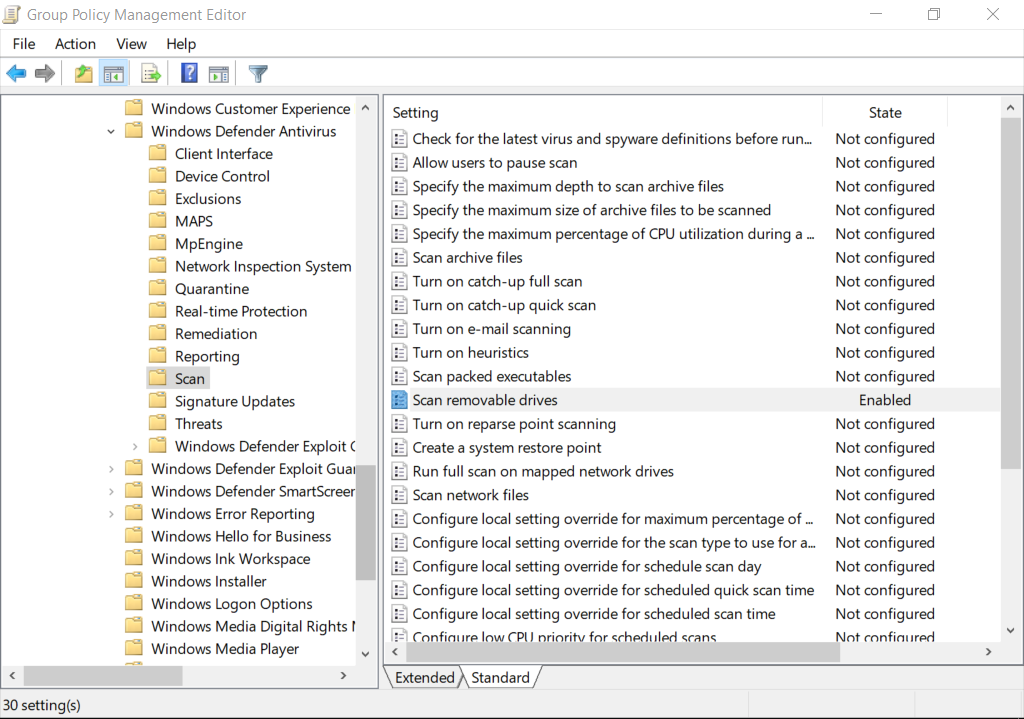
Scan Removable Drives During Full Scans
Windows Defender should include removable media during scheduled and manual full scans.
Group Policy Path
Computer Configuration → Policies → Administrative Templates → Windows Components → Microsoft Defender Antivirus → Scan → Scan removable drives
Configuration
Set the policy to:
EnabledThis ensures USB drives are scanned whenever a full Microsoft Defender scan is performed.
Bluetooth Security
The NCSC baseline disables Bluetooth to reduce the attack surface.
Turn Off Bluetooth
Group Policy Path
Computer Configuration → Policies → Administrative Templates → Network → Bluetooth → Allow Bluetooth
Configuration
Set the policy to:
DisabledDisable Bluetooth Advertising
Group Policy Path
Computer Configuration → Policies → Administrative Templates → Network → Bluetooth → Allow Bluetooth Advertising
Configuration
Set the policy to:
DisabledDisable Discoverable Mode
Group Policy Path
Computer Configuration → Policies → Administrative Templates → Network → Bluetooth → Allow Discoverable Mode
Configuration
Set the policy to:
DisabledThis prevents nearby devices from discovering the computer.
Disable Bluetooth Pre-Pairing
Group Policy Path
Computer Configuration → Policies → Administrative Templates → Network → Bluetooth → Allow Pre-pariting
Configuration
Set the policy to:
DisabledDisable Prompted Proximity Connections
Group Policy Path
Computer Configuration → Policies → Administrative Templates → Network → Bluetooth → Allow Prompted Proximity Connections
Configuration
Set the policy to:
DisabledThis disables pairing prompts initiated by nearby Bluetooth devices.
Settings Not Supported by Group Policy
The NCSC Device Control baseline contains two settings that cannot currently be configured through Local Group Policy or Active Directory Group Policy.
DMA Guard Device Enumeration Policy
Status: Not supported by Group Policy
This setting is configured through the Windows Policy CSP (DeviceEnumerationPolicy) and requires an MDM solution such as Microsoft Intune.
If you are using only Group Policy, this setting cannot be configured.
Allow Direct Memory Access
Status: Not supported by Group Policy
This policy is also configured through the Windows Policy CSP.
Without Intune or another MDM platform, Windows administrators should instead ensure that:
- Kernel DMA Protection is enabled where supported.
- Secure Boot is enabled.
- UEFI firmware is updated.
- Thunderbolt Security is configured in BIOS/UEFI.
Applying the Policies
After configuring all Group Policies, refresh policy settings.
Open an elevated Command Prompt:
gpupdate /forceRestart the computer if prompted.
Verify the Configuration
Generate a Group Policy report.
gpresult /h gpresult.htmlOpen the generated report and verify that the Device Installation Restrictions, Bluetooth, Microsoft Defender Antivirus, and Removable Storage policies are applied.
To view installed Plug and Play devices:
Get-PnpDeviceTo enumerate device information:
pnputil /enum-devicesTroubleshooting
Device Restrictions Are Not Applied
Verify:
- The GPO is linked correctly.
- Security filtering allows the computer account.
- The policy has replicated to all domain controllers.
- The workstation has refreshed Group Policy.
Run:
gpresult /rBluetooth Remains Enabled
Check whether:
- The device has manufacturer-specific Bluetooth management software.
- BIOS or OEM utilities override Windows settings.
- Another GPO conflicts with the Bluetooth configuration.
USB Devices Still Install
Confirm that:
- The hardware ID matches exactly.
- The device instance ID was copied correctly.
- The computer has been restarted.
- The “Also apply to matching devices that are already installed” option is enabled where required.
Best Practices
For the strongest endpoint protection, combine these policies with:
- Microsoft Defender Antivirus
- Microsoft Defender SmartScreen
- Microsoft Defender Firewall
- BitLocker Drive Encryption
- Attack Surface Reduction (ASR) Rules
- Credential Guard
- Application Control (WDAC or AppLocker)
Layering these controls significantly improves resistance against malware, unauthorized hardware, and data theft.